
Capture the shot
Precision capture
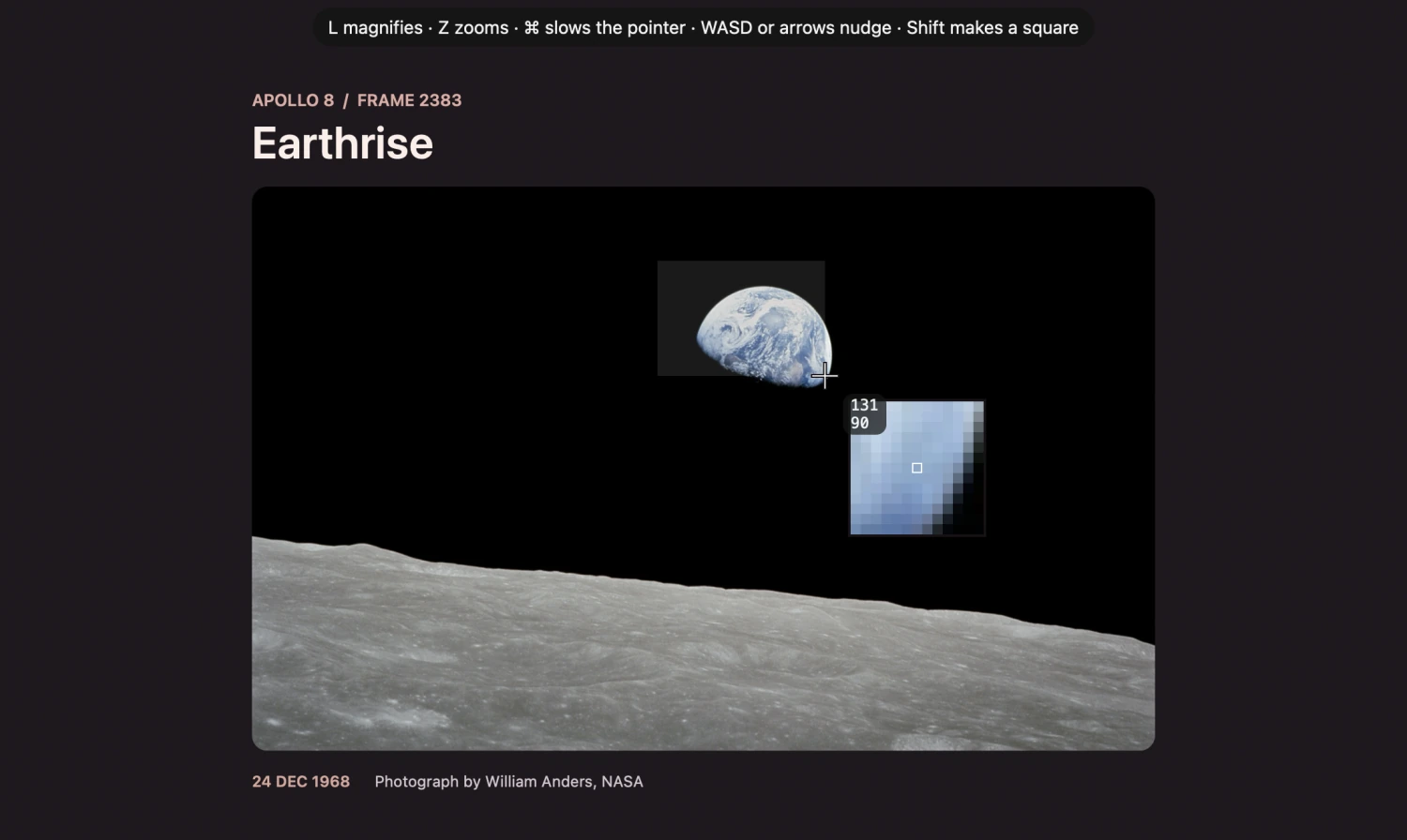
Freeze the screen and hold Cmd on macOS or Ctrl on Windows and X11 to move the capture pointer at one-fifth speed.
- Press L for the pixel magnifier, hold Z for 10× zoom, or use the arrow keys to nudge the pointer. Hold Shift to keep the selection square.
Capture and save
Capture a region, a window, a display, or several displays at once. Mark up the screenshot and save it to a folder.
- Freeze or delay a shot to capture a menu or hover state.
- Keep the wallpaper, use a solid colour, or make the window background transparent.
Fit a long page into one image
Select a region and let Shutr scroll and stitch it. Switch to manual scrolling for apps that ignore automatic scrolling.
Edit and annotate
Point out the details
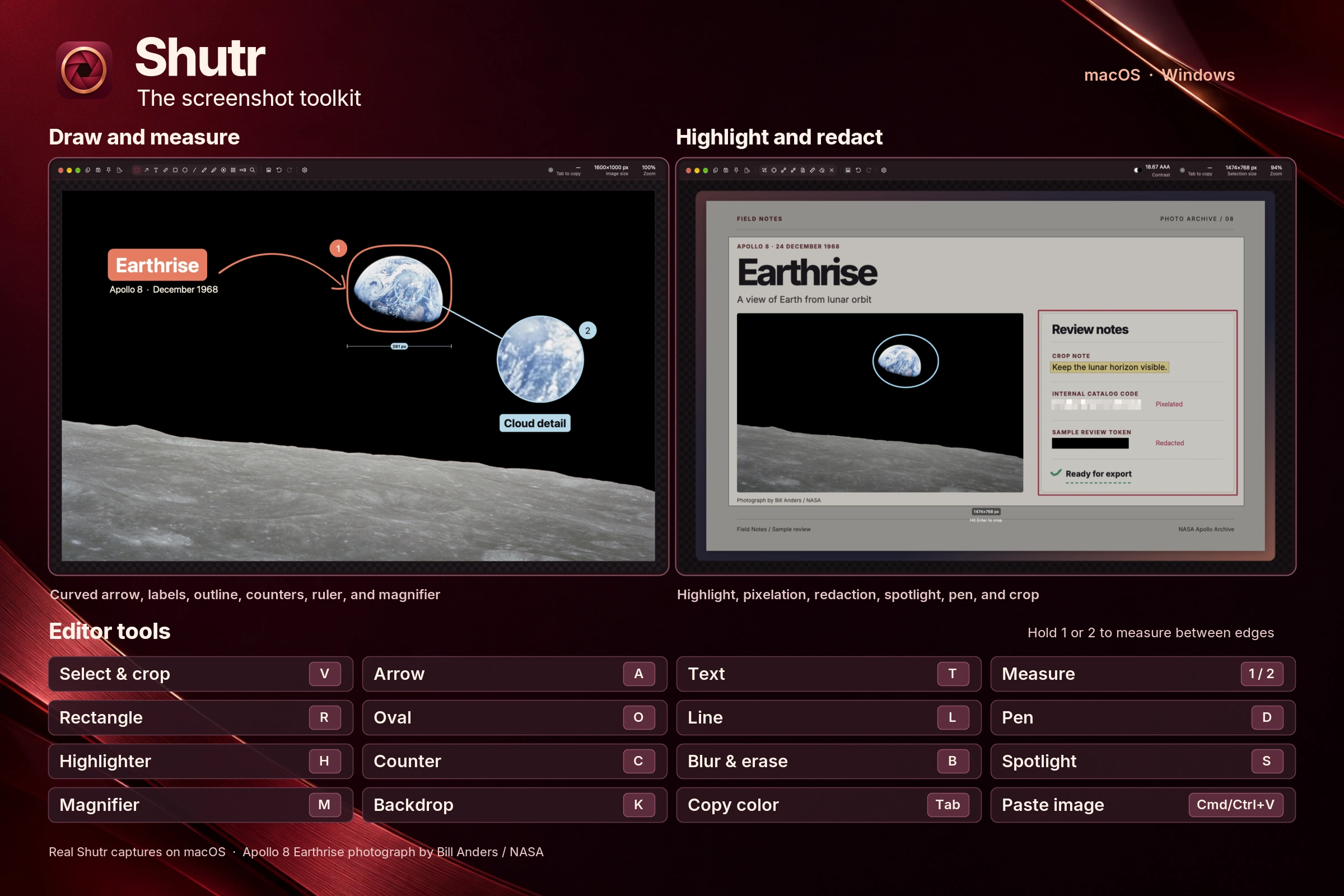
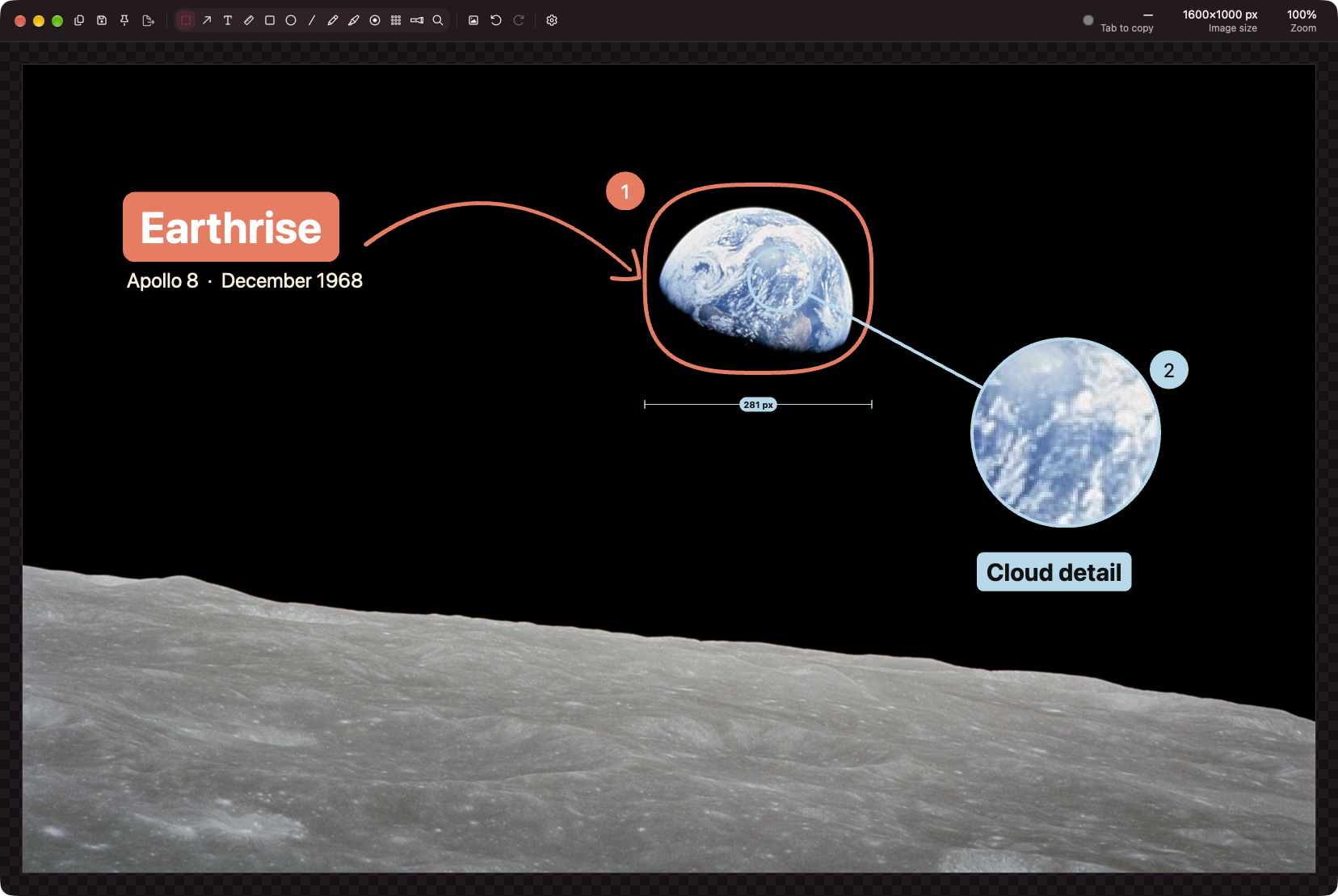
Add an arrow, a label, or numbered steps so someone reading your report can find the exact spot. Draw with the pen or call out an area with the spotlight.
Highlight and redact
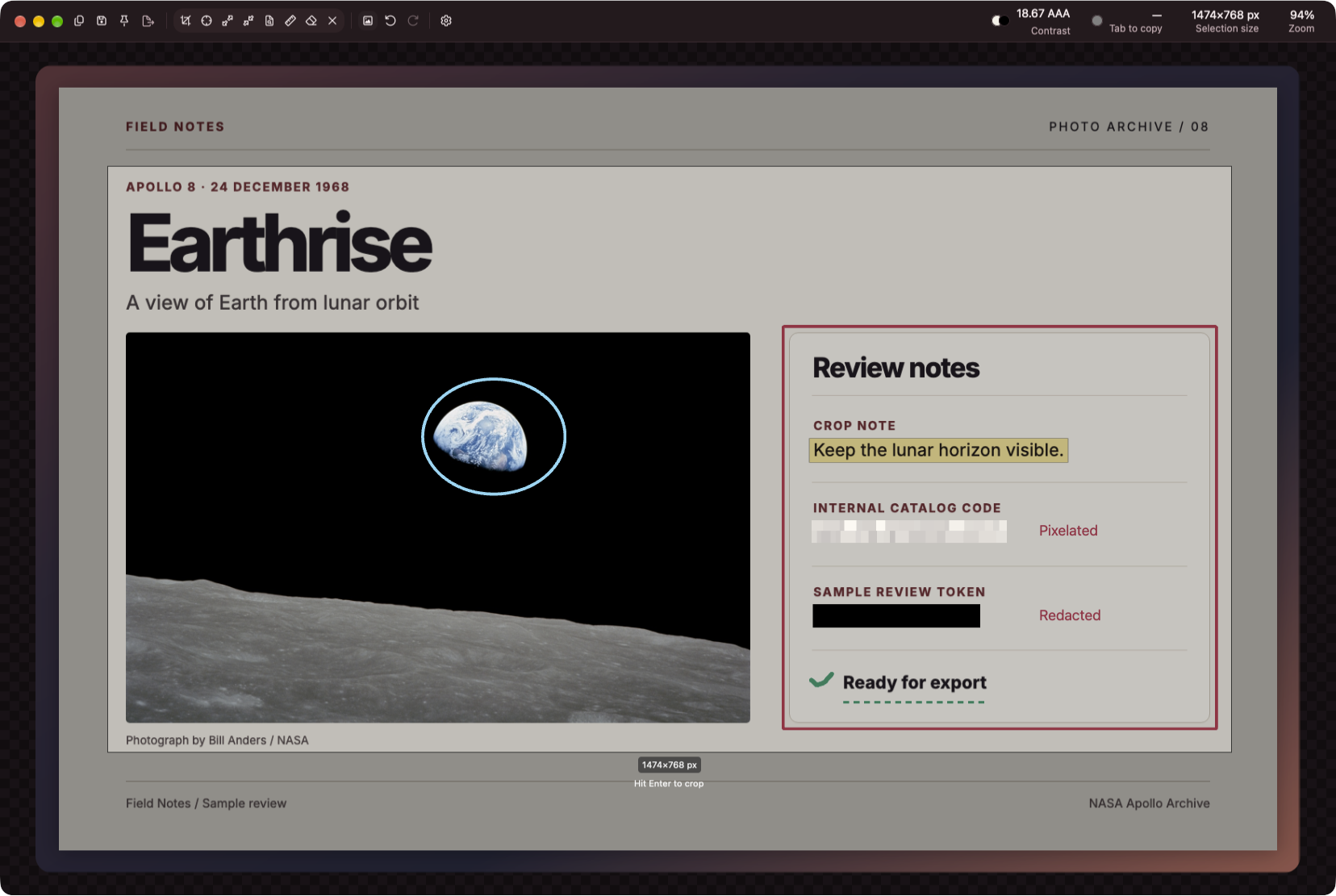
Highlight what matters. Blur, pixelate, or cover sensitive details before sharing.
Magnify, measure, and sample colours
Zoom in with the magnifier and hold 1 or 2 to measure between edges. Copy a colour under the pointer, a text colour, or the average across a selected area.
Crop and resize
Crop to a pixel-precise selection or trim to the content, then resize for wherever the screenshot will go.
Frame a screenshot with a backdrop
Add a background, adjust the padding and corners, and finish with a shadow before exporting.
Combine images in the editor
Paste an image onto a screenshot, move and resize it, then lower its opacity to show what sits beneath it.
Share captures and keep references in view
Drag a thumbnail into another app
Drag the image into another app to drop a full-resolution PNG. Move the floating card by its top grip while keeping keyboard focus in the app underneath.
- Floating thumbnails are available on macOS, Windows, and X11.

Copy text and read QR codes
Select an area to copy the text or decode a QR code. Recognition runs on your computer.
Pin a screenshot above your work
Resize a floating pin to compare layouts or follow instructions. Turn on click-through to use the app underneath.
- Edit, copy, save, or pin from the floating thumbnail. Switch between stacked captures when several are open.
Sample photo by NASA / Bill Anders. Apollo 8 Earthrise
Shutr editor tools
Editor tools and shortcuts
- Select and crop V
- Arrow A
- Text T
- Measure 1 or 2
- Rectangle R
- Oval O
- Line L
- Pen D
- Highlighter H
- Counter C
- Blur and erase B
- Spotlight S
- Magnifier M
- Backdrop K
- Copy colour Tab
- Paste image Cmd or Ctrl + V
Full-size editor screenshots
Set up your shortcuts
Choose capture hotkeys and editor tools. After each shot, show a thumbnail or the editor, or automatically copy or save the capture.
Automate captures from a script or launcher
Download Shutr
The macOS DMG is signed and notarized. The Linux .deb is built for Ubuntu 24.04 on x64.
macOS 15.2 or later on Apple silicon · Windows 10 or 11 on x64 · Ubuntu 24.04 on x64
Project origins
Shutr is based on the original Kiri, an MIT-licensed project by Timofey Maximov and Kiri contributors.